Migrating Vaultwarden (Bitwarden) Password Manager behind WireGuard VPN
A technical account of migrating a self-hosted password vault from an internet-exposed reverse-proxy setup to behind a WireGuard VPN tunnel: what went smoothly, what didn't, and what the problems revealed about the underlying systems.
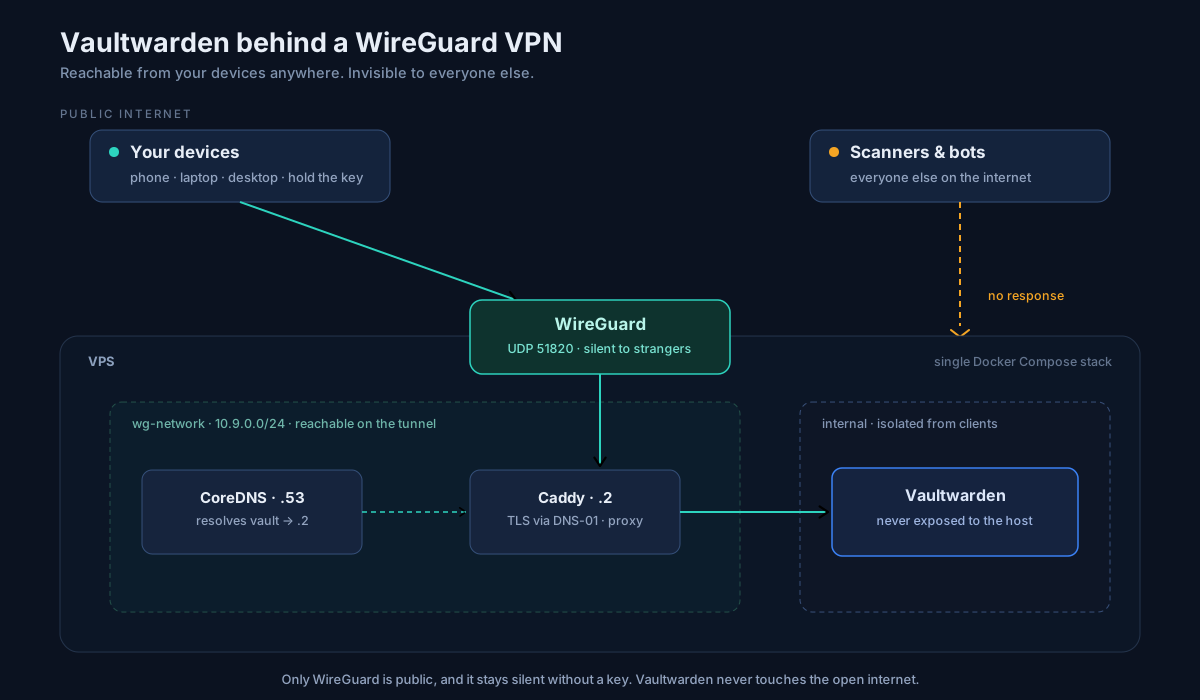
Overview
I've been a self-hosting enthusiast for a long time, but almost always for fun and personal projects like home automation, controlling a solar inverter into Home Assistant so it could switch appliances on and off. Deciding to self-host an internet-connected password manager felt like a different category entirely: coolllll, and genuinely unnerving. You hear about breaches at well-funded Fortune 500 companies so putting your entire digital life on the public internet for the convenience of access from anywhere should make anyone pause.
The obvious alternative is a cloud password manager: 1Password, LastPass, Bitwarden's hosted tier. That's a reasonable choice, but it means handing your whole vault to a third party and trusting their breach response.
I looked at Passbolt, KeePass, and a few others. Bitwarden won because of the clients: the same polished app on mobile, desktop, and browser, with a simple profile switch between work and personal vaults. For the uninitiated, Bitwarden is an open-source (AGPL-3.0) password platform, but only the core features are free to self-host; premium features need a licence. Vaultwarden is an independent Rust reimplementation of the Bitwarden API that ships organizations, attachments, and multiple 2FA options with no licence file. Vaultwarden ships the same API, so the official Bitwarden clients work against it unchanged.
You can run Vaultwarden exposed to the internet without a VPN (that was my first setup, and I've kept it documented in a dedicated reference), but I wouldn't recommend it. Pairing it with WireGuard is what makes the design defensible.
WireGuard's advantage here is its cryptographic silence. It doesn't respond to unauthenticated packets at all. A port scanner or an unknown peer hitting your endpoint gets nothing back: no response, no confirmation the port is open. To anyone without a pre-authorized key, the endpoint is effectively invisible.
This post walks through that setup i.e. Vaultwarden behind WireGuard, reachable from my devices anywhere but invisible to everyone else. It's framed as a migration (moving an existing, exposed instance behind the tunnel) because that's where the interesting decisions live. This is a personal vault, so I'm not going to complicate the steps with a zero-downtime cutover; a few minutes of downtime while I flip DNS is fine.
Why I moved it behind a VPN
My first setup was the obvious one: Vaultwarden behind Caddy, TLS from Let's Encrypt, ports 80 and 443 open to the world. It worked. Signups were off, the reverse proxy added security headers, and Vaultwarden has its own authentication and 2FA. For a while I told myself that was enough.
Then I started reading my logs.
POST /api/graphql            => 404
POST /api/gql                => 404
GET  /api-docs/swagger.json  => 404
GET  /.env                   => 404
None of it landed because every probe was a 404. But that's not the point. This was automated reconnaissance: bots fingerprinting the server, hunting for a known Vaultwarden CVE or a leaked endpoint. The Caddy logs showed headless-Chrome user agents and spoofed mobile ones. My vault wasn't being breached, but it was being watched, constantly, by things whose entire job is to be ready the day a vulnerability drops.
That was the turning point. I could keep playing whack-a-mole (fail2ban, rate limits, tighter headers), but every one of those is a band-aid on the same underlying fact: the login page was open to the whole internet. I wanted to remove the attack surface, not keep patching it.
So I looked at the options for gating access:
| Approach | Why not |
|---|---|
| IP allow-listing | My home IP is dynamic |
| Cloudflare Access | Puts a third party in the middle of my password-vault traffic |
| Cloudflare Tunnel | No open ports, but still a third-party middleman and a tunnel dependency |
| Authelia auth proxy | Self-hosted, but the Bitwarden mobile and desktop clients choke on auth-proxy redirects |
| WireGuard VPN | Zero public web ports, cryptographically silent, runs fine on every device. Chosen |
WireGuard won for the reason I described above which is that it doesn't answer unauthenticated packets at all. Close 80 and 443, and the only thing left listening is a UDP port that stays silent to everyone without a key. The vault doesn't get hidden behind a better lock but disappears from the internet's view entirely. The tradeoff is that every device I use needs a VPN client and for a personal password manager, that trade off was worth it.
What this post will help you build
By the end you'll have taken an existing Vaultwarden instance that's exposed to the public internet and moved it behind a WireGuard tunnel, so the vault stays reachable from your own devices anywhere, but becomes invisible to everyone else. Everything is in one Docker Compose stack on a VPS:
- Vaultwarden, never published to the host, reachable only through the proxy, on an internal Docker network.
- WireGuard (via wg-easy), the only publicly listening service, answering nothing to unauthenticated packets.
- Caddy as the reverse proxy, issuing a real TLS certificate through a DNS-01 challenge: valid HTTPS for a service that isn't publicly reachable.
- CoreDNS providing split-horizon DNS, so your vault's domain resolves to its internal tunnel address only when you're on the VPN.
- Automated, encrypted backups of both the Vaultwarden data and the WireGuard config, pushed to encrypted object storage with retention and a documented restore path.
Prerequisites
- A VPS with a public IP and Docker + Docker Compose installed.
- A domain you control, with DNS hosted on a provider Caddy can solve DNS-01 against (this guide uses AWS Route53; Caddy supports others).
- Object storage for backups (any rclone-compatible S3 remote).
- A WireGuard client on the devices you'll connect from (desktop, phone).
- Working comfort with Docker, DNS, and a Linux shell. You won't need deep WireGuard knowledge; wg-easy handles most of it.
- Optional - An existing Vaultwarden setup you want to migrate. This is optional because the best option is to build with the secure architecture from scratch.
The exposed reverse-proxy-only version is documented here for reference, but this guide doesn't walk through building it.
Resource usage
Here is a real docker stats from my VPS with the whole stack running and idle:
| Container | Memory | CPU |
|---|---|---|
| wg-easy | 168 MB | 0.00% |
| Vaultwarden | 129 MB | 0.06% |
| Vaultwarden backup | 88 MB | 0.00% |
| Caddy | 56 MB | 0.04% |
| CoreDNS | 22 MB | 0.28% |
| wg-backup | <1 MB | 0.00% |
| Total | ~465 MB | ~0.4% |
The whole stack idles under half a gig of RAM and does essentially nothing to the CPU. It's a single-user vault, so it's near-silent between the moments you actually unlock it. Vaultwarden is Rust and frugal while WireGuard lives in the kernel and is nearly free (wg-easy's 168 MB is its Node admin UI, not the tunnel).
So 1 GB of RAM is the comfortable recommendation, and a 512 MB box genuinely works at runtime with a little swap. The one catch is that if you build the custom Caddy image on the VPS, the Go compile spikes well past the idle footprint and can OOM a 512 MB instance, even though the running stack fits fine. Build the image elsewhere and push it, or add swap. One vCPU is plenty. Disk is trivial since OS, images, and a SQLite vault fit comfortably in ~25 GB.
One hardware note that isn't about specs: wg-easy needs the host kernel to support WireGuard and the container to get NET_ADMIN/SYS_MODULE (handled in the compose file). A standard KVM VPS is fine; some ultra-cheap OpenVZ/LXC instances don't allow kernel module loading and WireGuard won't come up on them regardless of RAM.
Architecture
Everything runs as one Compose stack on the VPS. Only WireGuard (51820/udp) listens publicly, and it stays cryptographically silent to anyone without an authorized key. Once a device is on the tunnel, it lands on the WireGuard client subnet (10.8.0.0/24) and can reach the Docker service network (10.9.0.0/24), where Caddy, CoreDNS, and wg-easy live. CoreDNS resolves vault.example.com to Caddy's service-network address, Caddy terminates TLS and reverse-proxies to Vaultwarden, and Vaultwarden itself is never exposed to the host at all. The TLS certificate is real and publicly trusted. Caddy proves domain ownership over DNS, not over an inbound HTTP request, so no public web port is ever opened. Two independent layers have to be crossed to reach the vault: WireGuard's key exchange, then Vaultwarden's own authentication.
[Architecture diagram goes here: internet → WireGuard → the two subnets and three services behind it.]
The complete stack
Here's the entire docker-compose.yaml. Copy the config values from .env (see .env.example in the repo); nothing secret is hardcoded. We'll unpack it service by service below.
services:
  vaultwarden:
    image: vaultwarden/server:1.36.0
    container_name: vaultwarden
    restart: unless-stopped
    volumes:
      - ./vw-data:/data
    environment:
      - DOMAIN=${VAULTWARDEN_DOMAIN}
      - SIGNUPS_ALLOWED=${SIGNUPS_ALLOWED:-false}
      - LOG_FILE=/data/vaultwarden.log
      - LOG_LEVEL=info
      - EXTENDED_LOGGING=true
      - IP_HEADER=X-Forwarded-For
    expose:
      - 80
    networks:
      - internal

  backup:
    image: ttionya/vaultwarden-backup:1.26.1
    container_name: vaultwarden-backup
    restart: unless-stopped
    depends_on:
      - vaultwarden
    volumes:
      - ./vw-data:/bitwarden/data/
      - vaultwarden-rclone-data:/config/
    environment:
      RCLONE_REMOTE_NAME: "BitwardenBackup"
      RCLONE_REMOTE_DIR: "/backups/vaultwarden-backups"
      CRON: "0 2 * * *"
      ZIP_ENABLE: "TRUE"
      ZIP_TYPE: "7z"
      BACKUP_KEEP_DAYS: "30"
      ZIP_PASSWORD: ${BACKUP_ZIP_PASSWORD}
    networks:
      - internal

  caddy:
    build: ./caddy
    container_name: caddy
    restart: unless-stopped
    environment:
      - AWS_ACCESS_KEY_ID=${AWS_CADDY_DNS_USER}
      - AWS_SECRET_ACCESS_KEY=${AWS_CADDY_DNS_USER_ACCESS_KEY}
    volumes:
      - ./Caddyfile:/etc/caddy/Caddyfile
      - caddy_data:/data
      - caddy_config:/config
      - ./caddy-logs:/data/caddy-logs
    networks:
      internal:
      wg-network:
        ipv4_address: 10.9.0.2
    ports:
      - "127.0.0.1:8080:8080"

  wg-easy:
    image: ghcr.io/wg-easy/wg-easy:15.2.2
    container_name: wg-easy
    restart: unless-stopped
    environment:
      # wg-easy v15 is configured through its setup wizard (persisted in the
      # wg-easy-data volume), NOT through v14-style env vars. WG_HOST,
      # WG_DEFAULT_ADDRESS, WG_ALLOWED_IPS and WG_DEFAULT_DNS are all IGNORED
      # in v15, set those in the wizard instead (see the WireGuard section).
      - INSECURE=true   # serve the admin UI over HTTP; safe, it's never publicly exposed
    volumes:
      - wg-easy-data:/etc/wireguard
      - /lib/modules:/lib/modules:ro
    ports:
      - "51820:51820/udp"
    cap_add:
      - NET_ADMIN
      - SYS_MODULE
    sysctls:
      - net.ipv4.ip_forward=1
      - net.ipv4.conf.all.src_valid_mark=1
    networks:
      wg-network:
        ipv4_address: 10.9.0.3

  wg-backup:
    build: ./wg-backup
    container_name: wg-backup
    restart: unless-stopped
    depends_on:
      - wg-easy
    volumes:
      - wg-easy-data:/wg-data:ro
      - vaultwarden-rclone-data:/config/:ro
    environment:
      RCLONE_CONFIG: "/config/rclone/rclone.conf"
      RCLONE_REMOTE_NAME: "BitwardenBackup"
      RCLONE_REMOTE_DIR: "/backups/wireguard-backups"
      ZIP_PASSWORD: ${BACKUP_ZIP_PASSWORD}
      BACKUP_KEEP_DAYS: "30"

  coredns:
    image: coredns/coredns:1.14.6
    container_name: coredns
    restart: unless-stopped
    volumes:
      - ./coredns/Corefile:/Corefile
    networks:
      wg-network:
        ipv4_address: 10.9.0.53

networks:
  internal:
    driver: bridge
  wg-network:
    driver: bridge
    ipam:
      config:
        - subnet: 10.9.0.0/24

volumes:
  vaultwarden-rclone-data:
    name: vaultwarden-rclone-data
  caddy_data:
  caddy_config:
  wg-easy-data:
    name: wg-easy-data
Two Docker networks do the isolation work. internal connects Vaultwarden, Caddy, and the backup container; nothing on it is reachable from a VPN client. wg-network (10.9.0.0/24) connects Caddy, wg-easy, and CoreDNS, and is reachable over the tunnel. Caddy straddles both, which is how tunnel traffic reaches Vaultwarden without Vaultwarden ever touching the tunnel network directly.
WireGuard: the only door
wg-easy runs the WireGuard server and gives you a web UI to manage clients. It's the only service with a public port (51820/udp), and because of WireGuard's cryptographic silence, that port is invisible to anything without a key.
The v15 gotcha that cost me time. wg-easy v15 is a rewrite. It no longer reads the v14-era environment variables: WG_HOST, WG_DEFAULT_ADDRESS, WG_ALLOWED_IPS, WG_DEFAULT_DNS are all ignored. Configuration now happens in a setup wizard on first launch and is persisted to wg0.json in the wg-easy-data volume. I found this out the confusing way: my compose file asked for a 10.9.0.x client range, but my clients kept landing on 10.8.0.x. The env var wasn't wrong; it was simply being ignored, and v15 fell back to its default 10.8.0.0/24. If you're coming from v14 configs or copying someone else's compose, strip those vars so you're not debugging a range you never actually set. The only ones v15 honours are things like INSECURE, PORT, and the INIT_* variables.
The subnet split, and why it matters. There are two separate 10.x ranges here and they must not overlap:
10.8.0.0/24: the WireGuard client range (wg-easy's v15 default, set in the wizard). Your phone, laptop, etc. get.2,.3,.4…10.9.0.0/24: the Docker service network, where Caddy is.2, wg-easy.3, CoreDNS.53.
I originally tried to run both on one range and hit two problems. Docker reserves .1 in every subnet for its own gateway, which collided with wg-easy. And more fundamentally, when the client range and the container range are the same CIDR, wg-easy's routing table becomes ambiguous; it can't cleanly decide whether a 10.x address is a VPN peer or a container. Splitting them into 10.8 (clients) and 10.9 (containers) removed the ambiguity entirely. wg-easy sits on the container network at 10.9.0.3 and masquerades traffic between the two.
The admin UI stays private. wg-easy's UI listens on 51821/tcp, and I never expose it publicly. It's reachable two ways: over the tunnel at http://10.9.0.2:8080 (proxied through Caddy, more below), or via an SSH tunnel when the VPN is down and I'm troubleshooting. That's also why INSECURE=true is safe here: the UI is served over plain HTTP, but it's never reachable from the public internet, only over an already-encrypted channel (WireGuard or SSH).
Split-horizon DNS with CoreDNS
Here's the problem split-horizon DNS solves. My devices need vault.example.com to point at Caddy's internal address (10.9.0.2), but only over the tunnel. If a device asks public DNS, it gets the VPS's public IP, where ports 80 and 443 are closed, and the connection dies.
A small CoreDNS resolver handles it, running on the tunnel-facing network at 10.9.0.53:
. {
    bind 10.9.0.53
    hosts {
        10.9.0.2 vault.example.com
        fallthrough
    }
    cache
    forward . 1.1.1.1 8.8.8.8
    errors
}
Two plugins do the work. hosts answers vault.example.com with Caddy's internal 10.9.0.2. And fallthrough is the load-bearing word: without it, CoreDNS returns NXDOMAIN for every name that isn't in the hosts block, and your clients lose all other DNS. With fallthrough, anything that isn't the vault domain drops through to forward, which sends it out to Cloudflare and Google. bind 10.9.0.53 keeps CoreDNS listening only on the WireGuard-facing IP, and cache keeps repeat lookups fast.
WireGuard clients use 10.9.0.53 as their DNS server, so vault.example.com resolves to Caddy's internal IP while everything else forwards out as normal. The vault's domain simply has no useful public answer; it only means something inside the tunnel.
(I originally ran dnsmasq here, which works fine. I swapped to CoreDNS because it's actively maintained and it's what I already run elsewhere. The behavior is identical: resolve one name locally, forward the rest.)
Real TLS with no open ports
Closing 80 and 443 breaks the usual way of getting a certificate. Let's Encrypt's HTTP and TLS-ALPN challenges both need an inbound connection on those ports, and I've just shut them. The answer is the DNS-01 challenge: instead of proving domain ownership by answering an HTTP request, Caddy proves it by creating a DNS record. No public web port required.
The stock Caddy image doesn't ship DNS provider plugins, so I build a small custom image with the Route53 module:
FROM caddy:2.10.2-builder AS builder
RUN xcaddy build --with github.com/caddy-dns/route53

FROM caddy:2.10.2-alpine
COPY --from=builder /usr/bin/caddy /usr/bin/caddy
Caddy needs AWS credentials to write the challenge record. I gave it a dedicated IAM user scoped to only the one hosted zone, separate from the IAM user my backups use. If either credential leaks, the blast radius is one narrow capability, not my whole AWS account. The policy is essentially:
{
  "Version": "2012-10-17",
  "Statement": [
    {
      "Effect": "Allow",
      "Action": [
        "route53:ListResourceRecordSets",
        "route53:GetChange",
        "route53:ChangeResourceRecordSets"
      ],
      "Resource": [
        "arn:aws:route53:::hostedzone/ZONE_ID",
        "arn:aws:route53:::change/*"
      ]
    },
    {
      "Effect": "Allow",
      "Action": ["route53:ListHostedZonesByName", "route53:ListHostedZones"],
      "Resource": "*"
    }
  ]
}
The Caddyfile ties it together: DNS-01 for TLS, a set of security headers, and the reverse proxy to Vaultwarden. It also proxies the wg-easy admin UI on :8080:
vault.example.com {
    log {
        output file /data/caddy-logs/access.log {
            roll_size 100MiB
            roll_keep 5
        }
    }
    tls {
        dns route53 {
            access_key_id {env.AWS_CADDY_DNS_USER}
            secret_access_key {env.AWS_CADDY_DNS_USER_ACCESS_KEY}
        }
    }
    encode gzip
    header {
        Strict-Transport-Security "max-age=31536000; includeSubDomains; preload"
        X-Content-Type-Options "nosniff"
        X-Frame-Options "SAMEORIGIN"
        Referrer-Policy "strict-origin-when-cross-origin"
        -Server
    }
    reverse_proxy vaultwarden:80
}

# wg-easy admin UI: only reachable via the tunnel or an SSH tunnel
:8080 {
    reverse_proxy wg-easy:51821
}
To reach the wg-easy UI when I'm off the VPN, I SSH-tunnel into Caddy's :8080:
ssh -L 8080:127.0.0.1:8080 -p <ssh-port> user@vps-ip
# then open http://localhost:8080
Vaultwarden itself
The Vaultwarden service is deliberately boring, and one line matters more than the rest:
    expose:
      - 80
expose, not ports. This is the direct lesson from the port-8080 mistake earlier. expose makes port 80 reachable only to other containers on the same Docker network (which is how Caddy reaches it), while never binding it on the host. ports would publish it to 0.0.0.0 and, as I learned, sail straight past UFW. If you take one thing from this article, take that: for anything that should live behind a proxy, use expose, and never assume your host firewall is covering a container port.
The rest is logging. LOG_FILE writes to a file (Vaultwarden only logs to stdout otherwise), and IP_HEADER=X-Forwarded-For makes Vaultwarden record the real client IP that Caddy forwards, rather than the proxy's internal address, which matters if you run fail2ban against the log. Signups are off.
Backups you can actually restore
A self-hosted vault with no tested backup is a disaster waiting for a bad disk. There are two backup jobs, because there are two things worth losing sleep over: the vault data, and the WireGuard config itself (lose that and every client has to be re-enrolled).
The Vaultwarden backup uses a well-worn community image, runs daily, encrypts with 7z, keeps 30 days, and ships to object storage over rclone. The WireGuard backup is a tiny custom container that tars wg0.conf (the server key and every peer) plus wg-easy.db, encrypts the archive the same way, and uploads it weekly. Both use the same rclone remote under different paths, and (like the DNS IAM user) the backup credentials are a separate, S3-only IAM user.
The part that actually counts is the restore, and I keep it documented and tested:
docker compose stop wg-easy

# Pull the archive, decrypt with the backup password, unpack:
7z x -p<password> wg-backup.YYYYMMDD.7z
tar -xf wg-backup.YYYYMMDD.tar

# Copy the files back into the live volume, then restart:
docker run --rm -v wg-easy-data:/data -v "$(pwd)":/restored \
  alpine sh -c "cp /restored/wg0.conf /restored/wg-easy.db /data/"
docker compose up -d wg-easy
Backups you've never restored aren't backups; they're a hope. Run the restore once against a throwaway target so you know the archive and the password actually work before you need them.
Connecting a client
wg-easy generates a client config from the UI, but you have to edit it before using it. The v15 defaults route all traffic through the tunnel (AllowedIPs = 0.0.0.0/0), use a public DNS server, and set no keepalive. For this design I want the opposite (split tunnelling, internal DNS, and a keepalive to survive NAT):
[Interface]
PrivateKey = <generated-by-wg-easy>
Address = 10.8.0.X/32
DNS = 10.9.0.53

[Peer]
PublicKey = <server-public-key>
PresharedKey = <preshared-key>
AllowedIPs = 10.8.0.0/24, 10.9.0.0/24
PersistentKeepalive = 25
Endpoint = 203.0.113.10:51820
The key lines: AllowedIPs = 10.8.0.0/24, 10.9.0.0/24 means only traffic bound for the WireGuard or Docker networks goes through the tunnel; the rest of my internet uses the normal connection. DNS = 10.9.0.53 routes name resolution through CoreDNS so the vault domain resolves internally. PersistentKeepalive = 25 keeps the tunnel alive behind NAT.
One practical note: the Android WireGuard app won't let you edit a config after import, so edit it on a computer first and transfer the finished file.
Roll the DNS out carefully. The one line that can break everything is DNS. wg-quick rewrites /etc/resolv.conf to use only the DNS server you name, so if that server isn't reachable, all name resolution dies, not just the vault. So I bring things up in order: first connect with the DNS line left out and confirm raw routing works:
ping 10.9.0.2   # Caddy
ping 10.9.0.3   # wg-easy
ping 10.9.0.53  # CoreDNS
Then confirm CoreDNS actually resolves the domain before I trust it:
dig vault.example.com @10.9.0.53 # should return 10.9.0.2
Only once that resolves do I add DNS = 10.9.0.53 back into the client config.
On desktop it's wg-quick:
sudo cp edited-config.conf /etc/wireguard/wg0.conf
sudo chmod 600 /etc/wireguard/wg0.conf
sudo wg-quick up wg0     # connect
sudo wg show             # verify
sudo wg-quick down wg0   # disconnect
On mobile, import the edited file into the WireGuard app and tap to connect.
Gotchas you might hit
Firefox couldn't reach the vault, Chrome could. This one genuinely puzzled me. With the tunnel up, Chrome loaded the vault fine, but Firefox (and the Firefox Bitwarden extension) failed. The cause is DNS-over-HTTPS. Firefox ships with DoH on, so instead of asking the system resolver (which routes through CoreDNS over the tunnel), it quietly resolved the domain via Cloudflare's public DNS, got the VPS's public IP, and hit closed ports. Chrome used system DNS and worked. The fix is to turn DoH off in Firefox (Settings → DNS over HTTPS → Off). Worth knowing that any app with its own DNS resolver can sidestep your tunnel DNS the same way.
Docker Compose won't mix list and map network syntax. The moment one network under a service needs a property like ipv4_address, every network under that service has to use map syntax; you can't mix - internal with a map entry. It'll just error until you convert them all:
networks:
  internal:
  wg-network:
    ipv4_address: 10.9.0.2
The wg-easy v15 wizard has sharp edges. The client-address field wants a single IP, not a CIDR; entering 10.8.0.0/24 fails. A "must be at least 1 character" error on the DNS field turned out to be trailing whitespace. And the client range is locked in at the initial wizard; changing it later meant tearing the volume down (docker volume rm <project>_wg-easy-data) and redoing setup from scratch.
What this doesn't protect against
WireGuard hides the endpoint. It doesn't do anything about the rest of the threat model, and it's worth being clear about what I've actually signed up for.
A compromised peer is a compromised vault. The tunnel only proves that a device holds an authorized key. If my laptop is stolen while unlocked, or my phone picks up malware, the attacker is inside the tunnel and the endpoint's invisibility is irrelevant. Full-disk encryption, a strong vault master password, and 2FA on the Vaultwarden account carry that part of the load, not the VPN.
I'm now the security team. Vaultwarden, WireGuard, the host OS, and the reverse proxy all need patching, and nobody is going to page me when a CVE drops. 1Password has staff whose entire job is that, plus a breach-response process. I've traded that for control, which is a real trade and not a free win.
Availability is on me too. If my server dies while I'm away, I lose access to every password until I fix it. Cloud providers have redundancy I don't.
The likeliest way I lose this vault isn't a breach. It's me. A failed disk with no tested restore, or a botched upgrade, and the vault is gone. Backups that have never been restored aren't backups. This is the failure mode I'd bet on, and it's the one that gets the least attention in write-ups like this.
Who this is a bad idea for. If you won't patch it, won't test restores, and won't notice when something breaks, hosted Bitwarden or 1Password is genuinely the more secure choice. Self-hosting is only safer if you actually do the maintenance it demands. For me the trade is worth it. It isn't for everyone.
Wrapping up
That's the whole setup: Vaultwarden reachable from my own devices anywhere, and cryptographically invisible to everyone else. The public attack surface went from a login page the entire internet could scan to a single silent UDP port.
On patching: with the vault off the public internet, I update manually rather than running something like Watchtower (which is archived and doesn't play well with recent Docker anyway). The urgency of same-day patching drops a lot when there's no public surface to attack; I watch Vaultwarden's releases and apply security-tagged ones promptly.
The full, sanitized config is in the repo. If you spot something I've got wrong, tell me. Publishing the pattern is partly an invitation to have it reviewed.